Git for Beginners: Basics and Essential Commands
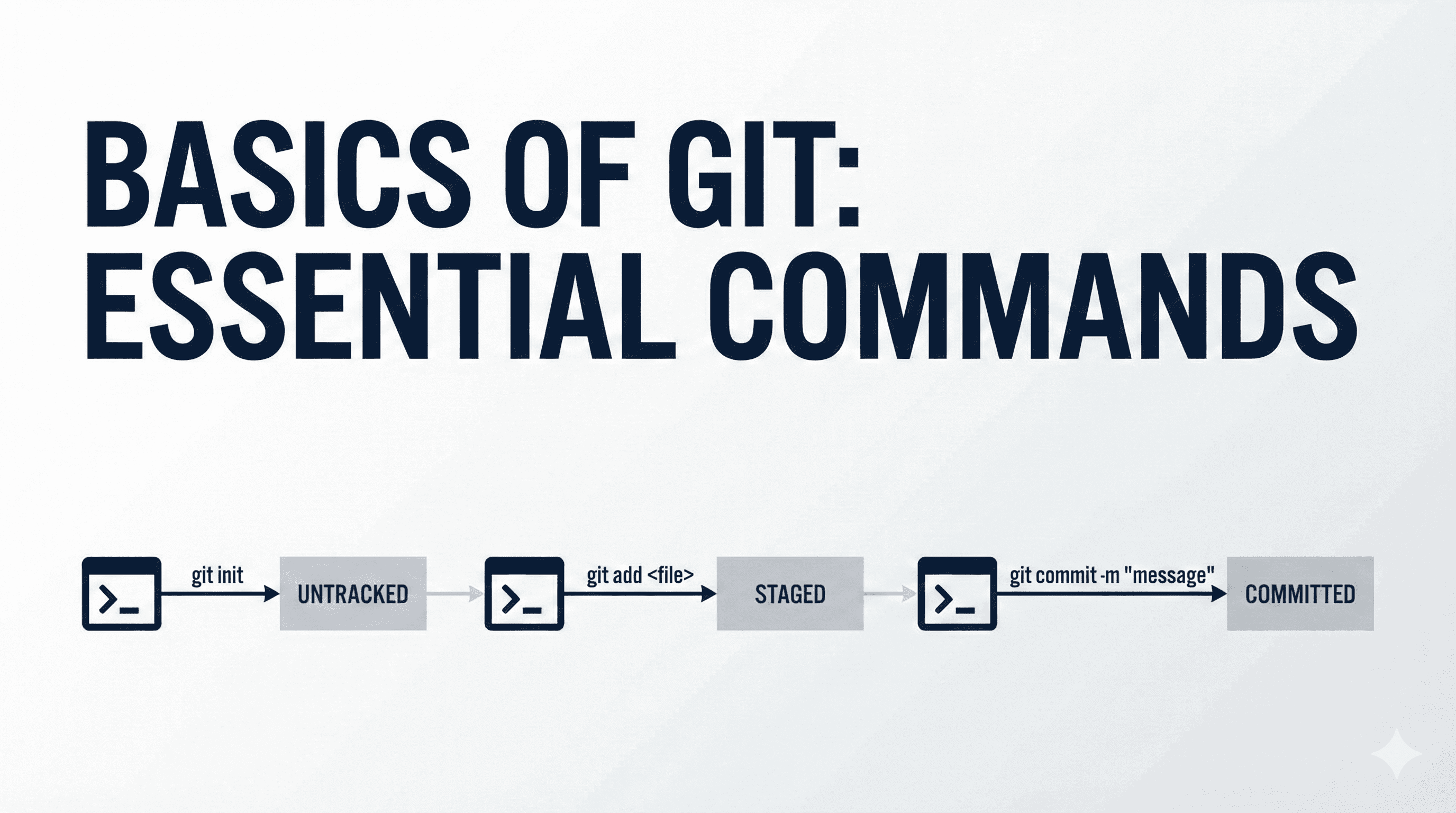
Before understanding the Basics and Essential commands of git, you first need to understand the basics of git. Git is a VCS ( version control system) that helps us track the changes to our codebase.
What is Git
Git is a distributed system that helps developers track, manage, and record all changes to the codebase. This improves codebase management, change tracking, and error fixing capabilities with ease. Due to this tool, we can revert back in the past version if anything goes wrong. It also allows developers to review changes, compare differences, and identify who made specific modifications.
Why Git Is Used by Most Developers
Git records every change made to the codebase along with:
Author information
Timestamp
Exact code differences (diffs)
Commit messages (why the changes were made)
From an engineering perspective, this provides traceability, making it easy to debug issues, audit changes, and understand how the system evolved.
Distributed Architecture (No Single Point of Failure):
Unlike a centralized system, Git provides a full copy of the codebase to every developer, including its entire history. Benefits of that:Developers can work offline
No dependency on a central server for local operations
Higher fault tolerance and reliability
Branching Mechanism:
Git’s branching model enables parallel development by allowing developers to create isolated branches for individual features or fixes. This isolation prevents conflicts with the main codebase, while Git’s powerful merging capabilities ensure seamless integration, significantly improving development speed and stability.
Safe Experimentation & Rollback:
Due to Git, engineers can experiment and explore new features freely. If anything goes wrong, they can easily roll back to a stable version, ensuring that the production code never breaks.Conflict Detection and Resolution:
Git has an inbuilt mechanism for detecting conflicts, and it can easily manage those conflicts. This ensures data integrity.
Basics of Git (Essential commands of Git)
Before we start coding, we need to install Git on our system (Windows, macOS, or Linux). Git helps us track changes in our codebase, but it does not track everything automatically. We must explicitly tell Git which folder it should monitor for changes.
How Git Works
Git provides a simple and powerful way to track changes in a codebase. It works using a few important components:
Repository
Staging Area
Commit
Branch
HEAD
Let’s understand each step by step.
Repository:
When we start working on a project, we keep all our project files inside a folder. To track changes in that folder, we need to inform Git that this folder should be tracked. Once we do that, Git creates a hidden folder called .git inside the project directory.
This .git folder stores all the information related to file changes, history, and versions. Git refers to this tracked project folder as a repository. In simple words, a repository is a project folder that Git is monitoring, along with its complete version history.
To create a new Git repository in your project directory, run the following command:
git init

Whenever we need information about our local repository, we can use the following Git command:
git status
This command shows the current state of the repository. For example, if a file named test.txt is created by the user, Git does not start tracking it automatically. Using the git status command, we can see that the file exists but is still untracked.

Staging Area:
In Git, when we want to track a file or its changes, we first add it to the staging area. By doing this, we tell Git to remember the current state of that file, but the changes are not saved permanently yet.
To add a file to the staging area, we need to run this command:
git add <filename>
As you can see in this example, after running the git add test.txt command, it started tracking that test file.

Commit:
After adding files to the staging area, if we want to save those changes permanently, we use the commit command. A commit records the changes along with important metadata such as the author’s name, email, commit message, and timestamp.
Now, to save the changes in Git, we need to run the following command:
git commit -m "commit message ( here we mention the changes we made )"
By running this command, Git finally saves the file along with all the changes made to it. The commit creates a permanent record of the changes in the repository history.

A user flow with git should look like this:

To view the history of changes in our Git project, we use this command.
git log shows the history of changes made in the repository. It lists all saved changes in reverse order (latest first), along with details about who made the change, when it was made, and what was changed.
git log

If we don’t want the detailed output from git log You can use the --oneline flag, which shows each log entry in a single line.
git log --oneline

Branching:
Branching is one of the most useful features in Git. It allows developers to work on multiple features at the same time while keeping their work completely isolated. Git also provides tools to merge branches and handle conflicts when changes are combined.
To understand branching, let’s look at a practical example. In a production-level setup, there is usually at least one branch, commonly called main or master (by default, Git creates master).
In a real production codebase, it is always recommended to create a separate branch whenever a new feature needs to be developed. This new branch is basically a copy of the existing code from the selected branch.
Using separate branches allows developers to build and test new features without affecting the production code. If any issue occurs during development, it stays limited to that branch and does not impact the live or stable version of the project ( which stays intact in the main branch ).
As you can see, we used the git init command to initialize an empty Git repository. Then we created a code.txt file containing some simple plain text as the main production code. After that, we added the file to the staging area and saved the changes. I hope this makes everything clear.

As we can see in the output of the git log command, there is a value like d1e3275. This is the short hash of the change. You can also notice HEAD, which we will discuss later in this blog. Here, HEAD is pointing to master, which is the default branch name automatically created by Git.
To change the branch name, we can use this command
git branch -m main # this command used to rename the branch name

Suppose you want to work on a new feature, then you can run this command to create a new branch
git branch <branchName>

To switch branches, you have this command
git switch <branchName> # This is modern command
git checkout <branchName> # This is old command


Now I switched to the feature1 branch again and made some changes in the code.txt file.
git switch feature1

As you can see, we first modified the code file. After that, we added the modified file again to the staging area using the git add . command. This command adds all available files in the current directory to the staging area. Then we created a commit with the message “feature 1 added”.
To merge this feature with the main branch, we first switched to the main branch using git switch main, and then used the merge command.
git merge feature1

But during merging, a common problem is merge conflicts.
Assume we have a team of two members: one developer is working on the main branch to keep the codebase stable, and another developer is working on a feature branch to build a new feature.
Now, if both developers accidentally change the same part of the code, Git gets confused during the merge and does not know which change it should keep.
Git has two types of merging processes:
Fast-Forward Merge: This happens when the target branch has no new commits since the feature branch was created (the source branch is a direct ancestor of the target branch). Git simply moves the pointer of the target branch to the latest commit of the source branch, resulting in a linear history and no extra merge commit. (The above example is showing Fast-Forward Merging )
Three-Way Merge (Recursive Merge): This is the default behavior when the histories of both branches have diverged (both have new commits). Git uses a common ancestor and the latest commits of both branches to create a new snapshot and a special merge commit that ties the two histories together. This preserves the full context and history of both branches.
As you can see, we are currently on the main branch, and the code.txt file is present with the content shown in the screenshot below.
Now, after switching to the feature branch, the code.txt file has different content, which is also shown in the screenshot.

Now open the file using an editor and make some changes. The updated changes are shown below.

Now add the file to the staging area and make a commit to save the changes in the feature branch.

Now switch back to the main branch and make some changes in the code.txt file. The changes are shown below.

Now add the updated code.txt file to the staging area and create a commit to save the changes in the main branch.

Now, what we did here is modify the same file in both branches. So, when we try to merge them, you can see a conflict occur.

To resolve the conflict, remove the conflict markers<<<<<<< HEAD, =======, and >>>>>>> feature1.
Then keep only the line that you want to save.
After that, save the file, add it to the staging area again, and make a commit to remove the conflict.

As you can see here, after removing everything, this is the content of the code.txt file in the main branch.

Now the file is ready. Add it to the staging area and create a final commit to merge the changes.

If you want to see the changes between two versions, you can use this command:
git diff <first_commit_hash>..<second_commit_hash>
# also
git diff <first_commit_hash> <second_commit_hash>

Now, the last important concept that we missed is HEAD. It is a pointer that tells Git where you are right now in the repository.
It always points to the current branch you are working on.
When you make a commit, HEAD moves forward to the latest commit.
If you switch branches, HEAD automatically moves to that branch.
Git uses HEAD to decide where new commits will be added.
In merge conflicts, HEAD represents the current branch you are on (usually
main).When you see
HEADin a conflict, it means this is the version from your current branch.
Git Commit History Flow
HEAD always points to the latest commit of the branch you are currently working on.
That commit is linked to its previous commit, and each commit is connected to the one before it.
This chain of commits is how Git keeps the complete history, which is why we can view all past changes using the commit log.