How a Browser Works: A Beginner-Friendly Guide to Browser Internals
Overview
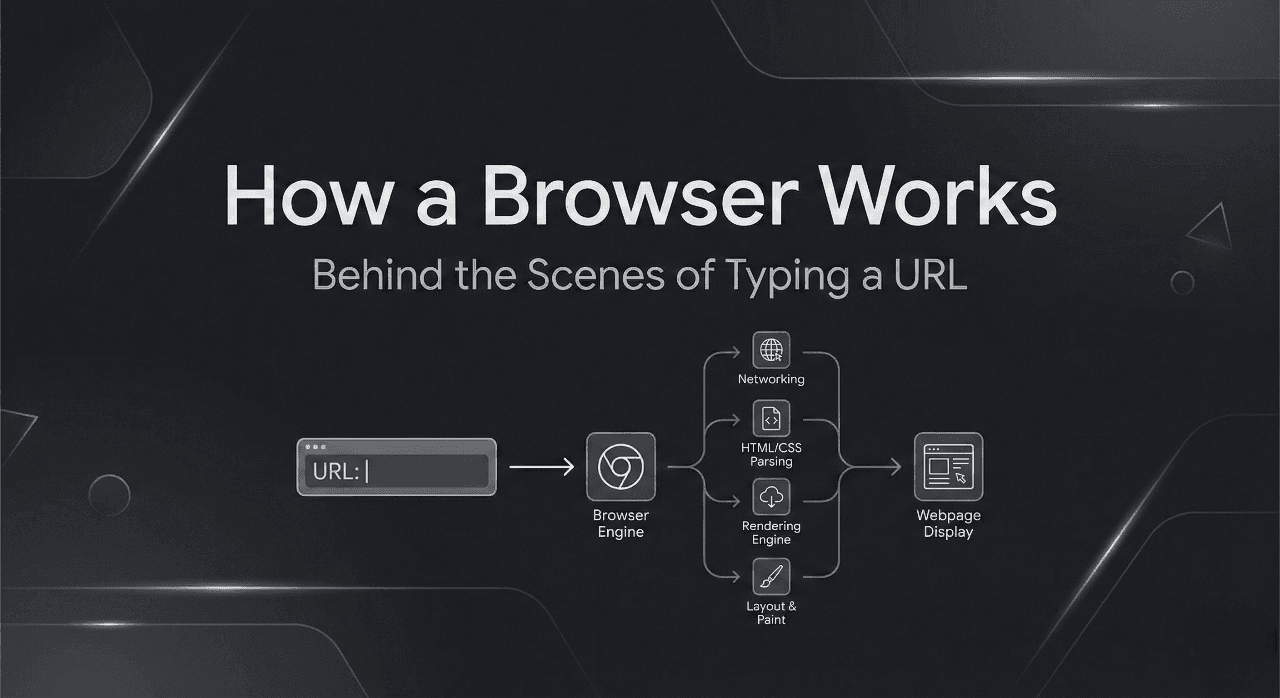
In this article, we are going to have a proper discussion about browsers and how a browser works. That is behind the scenes, how a user types a URL and actually sees the webpage.
What a Browser Actually Is (Beyond “It Opens Websites”)
When we think browser, in our mind first comes something like Chrome or Firefox, we have a URL input box, we type something like google.com, and we see the actual page. But in reality, there is so much happening behind the scenes.
A browser is almost a mini Operating System itself. It downloads web files (HTML/CSS/JS/images), understands them, and turns them into what you see on screen.
A Browser is a Team of Components (Not One Single App)
Assume Browser is a football match. To complete the match successfully, we need multiple players with different roles (Defender, Midfielder, etc.)
The same happened in the browser. It has multiple components for multiple tasks
downloading files
understanding HTML
understanding CSS
running JavaScript
drawing pixels on screen
Here is the high-level flow:

Main Parts of a Browser (High-Level Overview)
1. User Interface (UI)
This is what you interact with:
address bar
back/forward buttons
tabs
bookmark menu
download bar
2. Browser Engine
This acts like the manager.
It connects UI actions to the rendering engine. If the user types a website URL, the browser sends that request to the rendering engine to display the website to the user.
3. Rendering Engine
This is the most important worker.
It uses HTML and CSS to render (draw**)** the page.
Examples:
Chromium browsers → Blink rendering engine
Firefox → Gecko rendering engine
4. Networking
This is the downloader team.
It fetches resources like:
HTML
CSS
JS
images
fonts
5. JavaScript Interpreter (JS Engine)
This runs JavaScript.
Example:
Chromium → V8
Firefox → SpiderMonkey
This is what makes sites interactive.
6. UI Backend + Disk/Storage
Used for:
drawing basic UI elements
saving cache
cookies
localStorage
history
Browser Engine vs Rendering Engine (Simple Distinction)
Many beginners confuse these two. Here’s a very simple rule:
Browser Engine
connects UI actions to the rendering process
handles navigation, page load
Rendering Engine
reads HTML + CSS
builds the visual output
So, the browser engine decides what to do. The rendering engine builds what you see.
What Happens After You Type a URL and Press Enter?

Step 1: The URL is processed
You type:
Browser adds protocol if missing:
Step 2: DNS Lookup (Find IP Address)
Websites don’t live on domain names.
They live on IP addresses.
So the browser asks DNS:
“What is the IP of studyhex.com?”
DNS replies:
123.45.67.89 (example)
Step 3: Connection to Server
The browser creates a connection using:
TCP connection
TLS handshake (if HTTPS)
Now it can securely talk to the server.
Step 4: HTTP Request Sent
The browser sends a request like:
“Give me the HTML of the homepage.”
Server replies with an HTML file.
4) Networking: How Browser Fetches HTML, CSS, JS
The browser starts downloading:
First: HTML
Then finds inside HTML:
<!DOCTYPE html>
<html lang="en">
<head>
    <meta charset="UTF-8">
    <meta name="viewport" content="width=device-width, initial-scale=1.0">
    <title>TEST</title>
    <link rel="stylesheet" href="style.css">
</head>
<body>
    <h1>Heading</h1>
    <p>Paragraph</p>
</body>
</html>
Now the browser says:
“Download index.html”
“Download style.css.” When it sees the link stylesheet, it goes and downloads that
So the networking part becomes busy.
5) HTML Parsing and DOM Creation
Now the browser has HTML text.
But computers don’t work well with raw text.
So the browser does HTML Parsing.
What is parsing?
Parsing means:
Convert raw text into a structured meaning.
DOM (Document Object Model)
When a browser parses HTML, it creates the DOM Tree.
Example HTML:
<!DOCTYPE html>
<html lang="en">
  <head>
    <!-- Meta -->
    <meta charset="UTF-8" />
    <meta name="viewport" content="width=device-width, initial-scale=1.0" />

    <!-- Title -->
    <title>My First HTML Document</title>
  </head>

  <body>
    <!-- H1 -->
    <h1>Welcome to my website</h1>

    <!-- H2 -->
    <h2>This is a sub heading</h2>
  </body>
</html>
DOM tree becomes like:

DOM is like a tree of elements. DOM = HTML converted into a tree structure
6) CSS Parsing and CSSOM Creation
The same thing happens for CSS.
Example CSS:
* {
  margin: 0;
  padding: 0;
  box-sizing: border-box;
}

body {
  font-family: Arial, sans-serif;
  background: #0f172a;
  color: #f8fafc;
  min-height: 100vh;
  display: flex;
  justify-content: center;
  align-items: center;
  text-align: center;
  padding: 20px;
}

h1 {
  font-size: 2.2rem;
  font-weight: 700;
  margin-bottom: 12px;
}

h2 {
  font-size: 1.2rem;
  font-weight: 400;
  color: #cbd5e1;
}
Browser parses CSS and creates:
CSSOM (CSS Object Model)

CSSOM = CSS converted into a structured model
7) How DOM and CSSOM Come Together
Now we have:
DOM (structure)
CSSOM (style rules)
The browser combines them to create:
Render Tree
Render Tree includes only the visible elements.
Example:
- elements like
display:nonewill not be included
So DOM + CSSOM → Render Tree
8) Layout (Reflow): Where Everything Gets Its Position
Now the browser knows:
What elements exist
their styles
But still it doesn’t know:
Where should each element be placed?
How big should it be?
So it performs:
Layout / Reflow
This calculates:
position (x, y)
width and height
spacing
alignment
Example:
“h1 should start at 20px from top”
“p should be below h1.”
9) Painting: Converting Layout into Pixels
After the layout is done, the browser starts:
Painting
This means:
background colors
borders
text drawing
images
It paints in layers.
10) Display: Showing the Final Output
Now the browser sends the painted result to:
the screen display system
And you finally see the website
Very Basic Idea of Parsing
"10 + 20 * 3 +4 % 3"

Conclusion
As a beginner, you don’t need to memorize every component. Just try to understand the basic flow.
URL entered
request sent
HTML downloaded
DOM created
CSSOM created
Render tree created
layout (reflow)
paint
display