Inside Git: How It Works and the Role of the .git Folder
In today’s blog, we basically try to understand how git is actually working under the hood. Before starting this blog, if you’re unfamiliar with Git, please follow these two introductory blogs first, then return to read this blog.
Blog 1: Why We Need A Version Control System
So let’s start exploring how Git works internally.

As you can see, we initialized an empty Git repository, which created the .git folder—now let’s look inside and see what it actually contains.

Let’s look at the .git folder

As you can see, it contains a few folders like hooks, info, objects, and refs, along with some files such as config, description, and HEAD. Now we’ll go through each of them one by one and try to understand how they work. Let’s start by opening the HEAD file.

As you can see, it contains a ref (reference) that points to a folder path: refs/heads/master. Let’s take a look at that now. Inside the refs folder, we can see two folders: heads and tags.

For now, both folders are empty. If we look at the description file, it contains the repository name. To change the repository name, we need to edit this file.

Next, we have the info folder, which contains a file called exclude. For now, it’s empty, but this file is used to tell Git to ignore certain files—we’ll definitely look at it later. After that, there’s the hooks folder, which contains some sample scripts that we can use if we need any special use cases.

As you can see, there’s a pre-commit.sample script where you can write your own custom logic. If you remove the .sample extension, that logic will run automatically every time you commit your codebase.
Now, to understand how this works, let’s create a file called text.txt.


We run git add . and git commit, which adds all files to the staging area and creates a commit. After doing this, we can immediately see changes inside the .git folder. First, a index file is created, and inside the objects folder, a new directory 55 appears.

Now, to understand these changes, we first need to understand what Git objects The folder actually is.
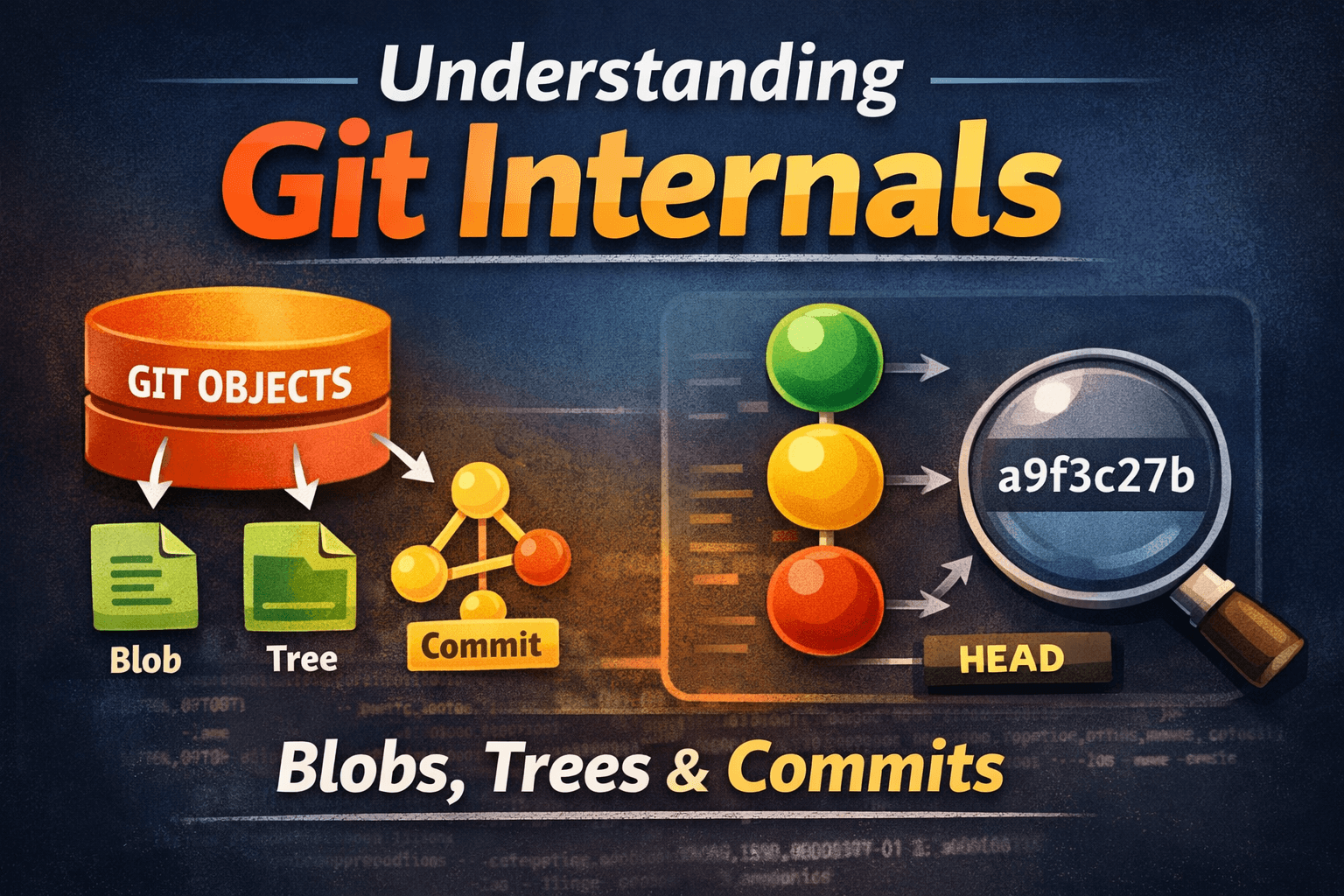
Git has three objects
Blob
Tree
Commit
Let’s understand the blob first.
Git uses a special technique to store file changes. It uses a SHA-1 hash to identify a file—almost like a tag—and the actual file content is stored as a blob. In simple terms, a blob represents the actual content of a file.
A blob stores raw file content
No filename
No permissions
No path
It stores the just byte
If text.txt contains:
this is a plain text file.
Give it a number 1
How blob content is stored
Internally Git stores:
blob <size>\0<content>
Then a SHA-1 hash is calculated from that content. If the content is exactly the same, it generates the same SHA-1 hash because it’s a mathematical function. But even a single space or a new line will change the content and produce a completely different SHA-1 hash.
In Git, to see the staged blobs, we can run this command:

It returns a hash—in our case, 559b906315547fcdf98e1b77dbe23f9969abb935. If you look closely, the first two characters are 55, which matches the folder name created inside the objects directory during the git add . command. The remaining characters are used as the filename, and that file stores the actual content.

To see the hash file content, we can use this command:
git cat-file -p <sha1-hash>
# here -p stands for pretty-print ( to see the binary content we use this)

To extend our discussion, let’s create a copy of the text file—both files have the same content.


And then, let’s stage the new file as well.

And in the objects folder, no new folder is created.

Git actually saves storage this way. When the content is the same, Git does not create any duplicate data—it reuses the same SHA-1 hash until the file content changes. As you can see in the output, we have two files in the staging area, but both of them point to the same hash.

To see the type of object hash, we can use this command
git cat-file -t <sha-1 hash>
# -t stands for type

Now you may have what is inside the index file we have here

To see the index file conent we already use that command
git ls-files --stage
# output
# 100644 559b906315547fcdf98e1b77dbe23f9969abb935 0       text-copy.txt
# 100644 559b906315547fcdf98e1b77dbe23f9969abb935 0       text.txt
Column 1 → 100644 (THIS IS IMPORTANT)
What it means in plain English
100644 = **file type + permissions (**Git borrows this from Unix file system rules.)
100 | 644
File type
| Code | Meaning |
100 | Regular file |
040 | Directory |
120 | Symbolic link |
160 | Git submodule |
File permissions
This part decides who can read/write/execute the file.
644 = rw-r--r--
| Who | Permission |
| Owner | Read + Write |
| Group | Read only |
| Others | Read only |
Let’s try to figure out how this tells the permission for each file
Computers think in bits
A bit can be:
0 = off
1 = on
Permissions need 3 independent switches:
Read
Write
Execute
Assume Switch Position is
Read    Write   Execute
  2       1        0

# Bit position:   2²   2¹   2⁰
# Decimal value:   4    2    1
| Permission | Bit | Value |
| Read | 2² | 4 |
| Write | 2¹ | 2 |
| Execute | 2⁰ | 1 |
Because you can add them and always know what’s enabled.
| Permissions | Binary | Decimal |
| r-- | 100 | 4 |
| -w- | 010 | 2 |
| --x | 001 | 1 |
| rw- | 110 | 6 |
| r-x | 101 | 5 |
| rwx | 111 | 7 |
What if values were random? (why NOT 3, 5, 6?)
read = 3
write = 5
execute = 6
# 3 + 5 = 8 ❌ what is 8? Not Understandable
Binary weights guarantee: Every combination is unique and reversible.
Now, let’s understand the Second and Third objects of Git, which are the tree and the commit together
Tree:
A tree is Git’s snapshot of a folder.
Not a file.
Not a commit.
A directory structure at a specific moment.
Make a commit of my Two Created File Text and text copy both

Note: After Running This Command It creates a new File Which is COMMIT_EDITMSG

This file stores the actual commit mesage temporary to save it further we provide during the commit command

Now, to understand the Tree and Commit Let’s run This Command
git log

As you can see, it also gives a SHA-1 hash. Let’s check the content of that first.
git cat-file -p <sha-1 hash>

As you can see, it shows a tree with the hash ad031163ef52fb6ab5e1e, along with the author name, committer name, and the commit message.
Now, let’s copy the tree hash and try to view its content using this command.
git cat-file -p <sha-1 hash>

Let’s print the type of it using this command

So we can think of a tree as the directory structure for our code files. Here, we can see that it contains two blobs. To move our understanding forward, let’s create another folder with some content.

And commit it with the message “z feature added.”

As a result, we can see a few changes.
The first change we notice is in the COMMIT_EDITMSG file.

As you can see, we now have two commits.

Now, everything should be clear.

The object type of this hash is

Let’s understand the output here,
$ git cat-file -p 379a752
tree 2b7a20fe16cb153fc71a4ca8598ec1208fafecc2 # this is the current tree sha 1 hash
                                              # were current commit is poiting
parent cc2a85709f2cf0a75b8fe6e8fa075c3b2b8a1550 # This is the Parrent tree sha 1 hash
author Pallab Karmakar <ookarmakarpallab1212@gmail.com> 1768467910 +0530 # Author Metadata
committer Pallab Karmakar <ookarmakarpallab1212@gmail.com> 1768467910 +0530

adding z feature # Actual Commit Message
The complete workflow actually looks like this.

Let’s try to break down the Staging and Commit Internals working mechanisms

What happens when you run git add .
Git does NOT store files by name or folder
It only cares about file content
Step-by-step:
Git reads the content of each modified/new file
For each file, Git:
Takes the raw file content
Prepends a header like:
blob <size>\0Calculates a SHA-1 hash of this data
This hash uniquely identifies the file content
Object storage:
Git stores the content as a blob object
Blob is saved inside:
.git/objects/xx/yyyyyyyyyyyy...where:
xx= first 2 characters of the SHA-1yyyy...= remaining 38 characters
If two files have identical content, Git:
Creates only one blob
Both files point to the same SHA-1
Staging area (index):
Git updates the index file
Index maps:
filename → blob SHA-1At this point:
Files are staged
No commit exists yet
What happens when you run git commit
Tree creation:
Git reads the index
It creates a tree object
The tree:
Represents a directory snapshot
Maps:
filename → blob SHA-1
Each folder becomes its own tree (nested trees if needed)
Commit object creation:
Git creates a commit object
The commit contains:
Tree SHA-1 (root directory snapshot)
Parent commit SHA-1 (if any)
Author name & email
Committer info
Commit message
Relationships:
Commit → Tree → Blobs
Commit points to the tree
Tree points to blobs
Blobs store actual file content
After the commit is done
A new file appears:
.git/COMMIT_EDITMSG(temporary, for commit message)
HEADnow points to:refs/heads/master → commit SHA-1Git history is updated
Working directory is now clean
Conclusion:
Git stores everything as objects, not as plain files.
Blobs store the actual content of files.
Trees represent directory structures and map filenames to blobs or other trees.
Commits store metadata and point to a single root tree.
Git uses SHA-1 hashes to uniquely identify every object.
If two files have the same content, Git stores only one blob and reuses the same hash.
Any small change in content creates a new SHA-1 hash.
The index (staging area) links files to blobs before committing.
The objects folder stores all blobs, trees, and commits in a compressed form.
The HEAD reference points to the current commit.
Each new commit creates a new tree if the directory structure changes.
This design makes Git fast, storage-efficient, and reliable.